Feedback - Migrating TFS to Azure DevOps
Introduction
Sokube teams recently had the opportunity to migrate an on-premise TFS Server infrastructure to Azure DevOps Services cloud offering.
There are many reasons why you might want to do this:
- Getting automatic updates from Microsoft
- Optimizing financial costs and reducing operational time
- Complying to certifications (ISO 27001, SOC 1, SOC 2 and HIPAA BAA)
- Accessing the platform from to Azure DevOps from anywhere and on any device
- Getting a 99.9% uptime guarantee
- Support
In this article, we will detail the different steps necessary for the migration process and then we will share our feedback and the difficulties encountered.
Intervention procedure
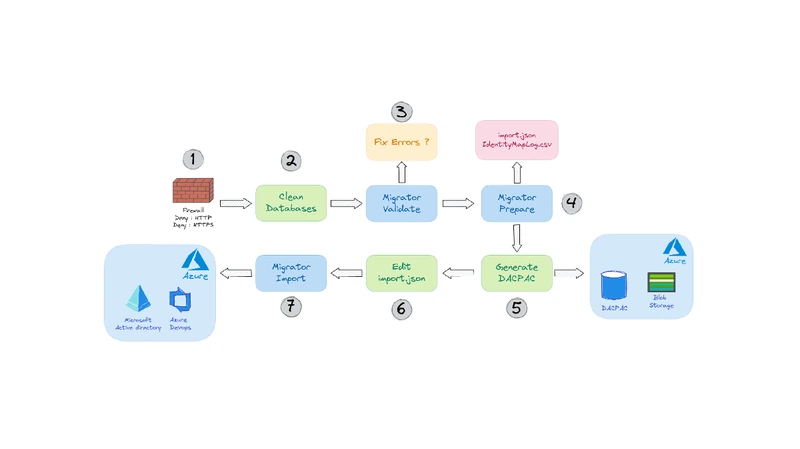
The following workflow illustrates the different stages of the migration process that we will analyze:
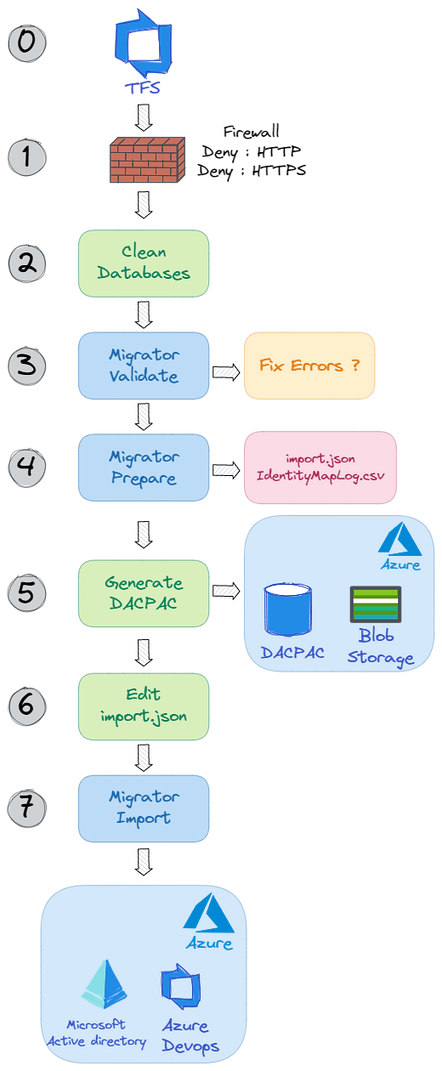
0 - Azure DevOps Server (TFS) Update
Before you can start the migration, it is necessary to have a recent version of Windows (Windows 2019) and a recent version of Azure DevOps Server (2020).
|
1- Firewall modification
The first step of our migration consists in cutting the firewall (port 80 and 443) on the production (local and/or external firewall) in order to avoid modifications on the different TFS collections.
2 - Cleaning the collections databases
This step is the most important. Indeed, significantly reducing the size of your collections will allow you to migrate more easily and quickly to Azure DevOps Services.
All the necessary commands to optimize the size of your collections are nicely detailed in the following article : How to reduce the size of your TFS/Azure DevOps Server collection databases
|
3 - Validation of the data to be migrated
We can now operate the actual data transfer. The first step before uploading a dataset into Azure DevOps is to validate it on Azure DevOps Server 2020.
- Download TFS Migrator
- Run the following system command on your collection(s):
|
4 - Preparing for migration
This step is similar to the previous one. Here we will generate the import.json and IdentityMapLog.csv files, used by the migration tool.
- Run the following system command on your collection(s):
|
5 - Generating a DACPAC file
|
- Detach your collections from Azure DevOps Server
- For each of your collections, generate the DACPAC file(s) via the following command line:
|
You must then copy your DACPAC to an Azure blob container storage.
This operation can be done manually via the Azure Container Explorer or more quickly using AZCopy:
|
6 - Editing the import.json file
In step 4, an import.json file was generated in the folder C:\migration\Logs\Collection-Name\Date\.
Open the file and complete it for the dry-run migration:
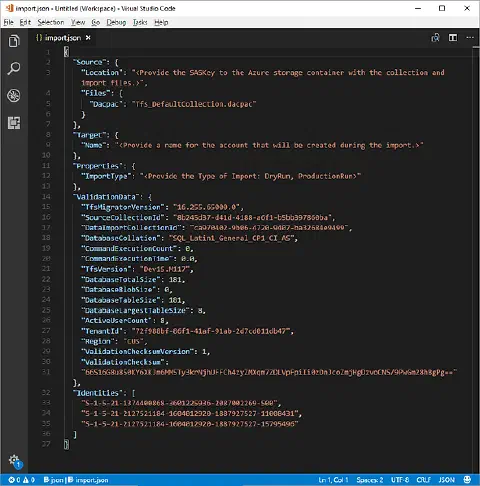
Replace the following fields:
- Location : Provide the SASKey of your Azure storage container
- Dacpac : Enter the path of your uploaded DACPAC file
- Target Name : The name of the Azure DevOps organization to create (use a temporary name for a dry-run)
- ImportType : Put DryRun to do a migration test or Production for a definitive migration.
|
7 - Launching the migration
Now run the following command for each of your collections:
|
A link will be provided to follow the import progress:
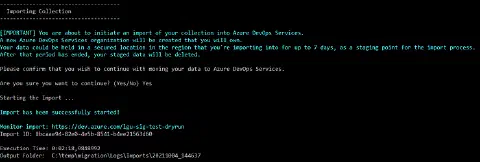
Once the migration has started and is complete, an email will be sent.
|
You can now validate the migrated data with your users before proceeding to the final intervention.
Feedback and difficulties encountered
Once the databases are reduced, the Azure DevOps migration process is very reliable.
Nevertheless, several points must be taken into account to perform succesfully such a migration:
- Make sure you configure your AAD (Azure Active Directory) correctly. This step will allow you to have your groups and users configured directly after the migration.
- Remember to reserve your organization name (ex: my-great-place-to-work) in Azure DevOps as soon as possible. It is possible to rename an organization at any time. So you can do your tests (dry-run) on temporary organizations (ex: my-great-place-to-work-test1).
- Cleaning databases can be tedious. Indeed, some automatic cleaning jobs did not work on the server to be migrated. It is therefore interesting to take care of the cleaning of the databases in a first planned intervention by relying on a VM snapshot.
- Establish a user validation plan beforehand with your developer teams (pipelines, release definitions)
- Retrieve via the Azure DevOps API the pipelines and release definitions of your first dry-run migration using self-hosted agents. Indeed, since self-hosted agents are not migrated by Azure DevOps, your pipelines will not have agents configured.
Sources
How to reduce the size of your TFS/Azure DevOps Server collection databases
Migrating from TFS to the Cloud… Without Losing Your Mind
Azure DevOps Server to Services Migration overview - Azure DevOps
To go further, discover our Azure DevOps AZ-400 training and our DevOps consulting.